Call us now:

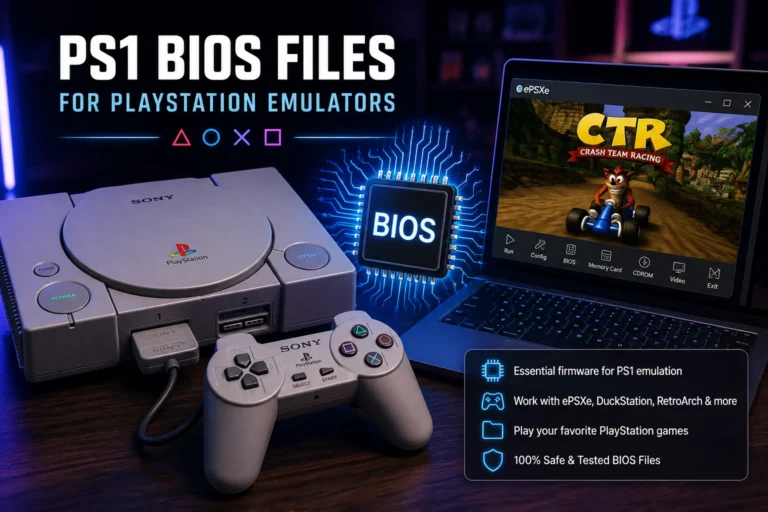
If you’ve ever tried to fire up an old PlayStation game on your PC and got stuck on a black screen, chances are you’re missing one small but critical file — the PS1 BIOS. Without it, no PSX emulator will boot a single disc, no matter how good your ISO is. This guide walks through what the BIOS actually does, where to get one that works, and how to plug it into the emulator you’re using.
I’ve set up PS1 emulation more times than I can count, on everything from a decade-old laptop to a Raspberry Pi. The BIOS part trips up more people than the actual game files do. So let’s fix that.
What Is a PS1 BIOS File?
A PS1 BIOS is the small startup program that was baked into every original PlayStation console. It’s the same idea as the BIOS chip on a regular computer motherboard — it wakes the hardware up, checks the disc, and hands control over to the game.
Sony’s original PS1 BIOS files are usually around 512 KB in size. That’s tiny compared to a game, but without it, an emulator has nothing telling it how to talk to the “hardware” it’s simulating.
Here’s a simple way to think about it: the BIOS is the receptionist at the front desk. The game disc is the visitor. Without the receptionist checking them in, the visitor never gets past the lobby, no matter how important they are.
Why Do You Need a PS1 BIOS to Run PSX Games?
You need a PS1 BIOS because emulators like ePSXe, DuckStation, and RetroArch’s PSX core are built to replicate real PlayStation hardware — and real hardware always ran through this boot sequence first. Skip it, and the emulator has no legal instruction set to follow.
A few years back, some emulators shipped with “HLE” (High-Level Emulation) BIOS replacements that faked this process. They worked, sort of. Games would boot, but memory card saves glitched, some FMV cutscenes stuttered, and a chunk of titles just crashed outright. That’s why almost every serious PS1 emulator today asks for the real BIOS file instead of using a shortcut.
DuckStation, for example, straight up recommends you use an actual dumped BIOS rather than its fallback option. The difference in compatibility is noticeable — we’re talking maybe 85-90% game compatibility with HLE versus 99%+ with a real BIOS dump.
Types of PS1 BIOS Files (US, EU, JP Regions Explained)
Not all PS1 BIOS files are the same. Sony released different versions for different regions, and this matters more than people expect.
- SCPH1001.bin – This is the ps1 US bios file, used for North American PlayStation consoles. Most American-released games expect this one.
- SCPH5502.bin – The European BIOS version, needed for PAL region games.
- SCPH5500.bin – The Japanese version, required for original NTSC-J releases.
- SCPH7001.bin – A later US revision, also widely compatible.
If you’re mainly playing American PS1 classics — think Final Fantasy VII, Crash Bandicoot, Metal Gear Solid — grab the ps1 us bios (SCPH1001.bin). It’s the most commonly requested version for a reason: most ROM sets and console releases outside Japan and Europe were built around it.
Mixing regions doesn’t always break things, but it can cause slowdowns, wrong language text, or a boot loop on region-locked games. I’ve seen a PAL-only racing game refuse to load past the Sony logo simply because a US BIOS was loaded instead.
Where to Find PS1 BIOS Download Files Safely
This is where most guides go quiet, so let’s be direct about it. There’s no official Sony source for a psx bios download anymore — the PS1 has been discontinued since 2006, and Sony never released these files for public download.
That leaves two realistic paths:
- Dump it yourself from a PS1 console you already own, using a modded system or a compatible disc-reading tool. This is the only method that’s fully clean from a legal standpoint since you’re extracting from hardware you own.
- Download from community archive sites that host psx bios downloads — common on forums like emulation subreddits or dedicated retro gaming archive sites.
If you go the download route, a few practical tips:
- Check the file size. A legit SCPH1001.bin should be exactly 524,288 bytes (512 KB). Anything wildly different is probably corrupted or fake.
- Verify with an MD5 checksum if the source provides one. The known checksum for SCPH1001.bin is 924e392ed05558ffdb115408c263dccf.
- Avoid sites bundling the BIOS with an .exe installer. A real BIOS file is just a .bin — no installer needed, ever.
Common Filenames You’ll See in PSX BIOS Downloads
When you’re browsing psx bios files online, you’ll run into a handful of standard names repeatedly:
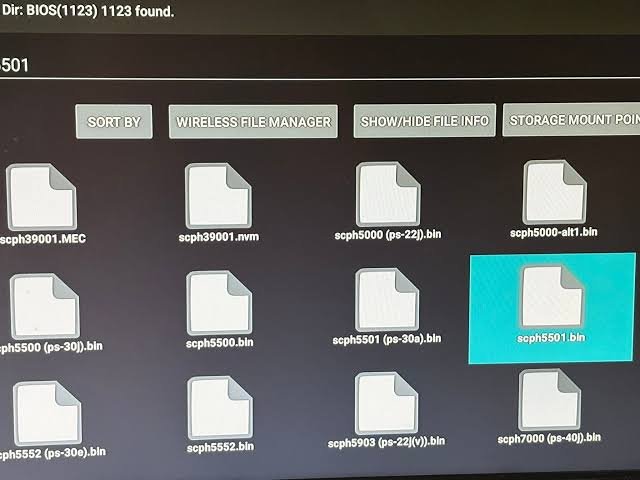
- SCPH1001.bin (US)
- SCPH5501.bin (US, earlier revision)
- SCPH5500.bin (Japan)
- SCPH5502.bin (Europe)
- SCPH7001.bin (US, later revision)
- scph101.bin (PS One slim model BIOS)
If a psone bios download folder has a mix of these, keep them all — different emulators and different game regions might need different ones down the line.
How to Set Up a PS1 BIOS in Popular Emulators
Setup steps vary slightly by emulator, but the core idea is the same everywhere: point the emulator’s settings to a folder containing your BIOS file. Here’s how it breaks down for the three most-used options in 2024.
Setting Up BIOS in DuckStation
DuckStation is probably the best PS1 emulator right now for accuracy and speed.
- Open DuckStation and go to Settings > BIOS.
- Click the folder icon and select the directory where your BIOS files are stored.
- DuckStation will auto-detect valid files and list them by region.
- Pick SCPH1001.bin (or your region’s equivalent) from the dropdown.
- Load a game — if it boots to the PlayStation logo, you’re set.
Setting Up BIOS in ePSXe
ePSXe has been around since 1999 and still works well for older PCs.
- Launch ePSXe and go to Config > BIOS.
- Browse to your BIOS folder — it needs to be inside ePSXe’s “bios” subfolder by default.
- Select the correct .bin file and hit OK.
- Restart the emulator so it fully registers the file.
Setting Up BIOS in RetroArch (Beetle PSX Core)
RetroArch is trickier because it’s not obvious where BIOS files go.
- Download the Beetle PSX (or Beetle PSX HW) core from RetroArch’s core downloader.
- Place your BIOS files directly in RetroArch’s system folder — not in a subfolder, right at the root.
- Rename files exactly as RetroArch expects: scph5500.bin, scph5501.bin, scph5502.bin.
- Load your game with the Beetle PSX core selected.
Miss the exact filename spelling here, and RetroArch will silently fail to detect the BIOS. This one detail causes more support forum posts than anything else in PS1 emulation.
PSXeven BIOS File Setup
PSXeven is less popular now but still floats around retro gaming circles. The psxeven bios file setup works almost identically to ePSXe:
- Open PSXeven’s configuration menu.
- Navigate to the BIOS tab and browse to your file.
- Select your region-appropriate BIOS and save the config.
It’s a lighter emulator, so if you’re running PS1 games on genuinely old hardware — like a laptop from 2010 — it’s worth trying if DuckStation feels sluggish.
Common PS1 BIOS Errors and How to Fix Them
Almost every BIOS problem falls into one of these buckets:
| Problem | Likely Cause | Fix |
|---|---|---|
| Black screen on boot | Wrong or corrupted BIOS file | Re-download and check file size (524,288 bytes) |
| “BIOS not found” error | File placed in wrong folder | Move file to emulator’s exact BIOS/system directory |
| Game boots but crashes mid-cutscene | Region mismatch (e.g., using EU BIOS for a US game) | Match BIOS region to game region |
| Choppy audio or frame drops | Using HLE fallback instead of real BIOS | Switch to an actual dumped BIOS file |
| Save states not working | Corrupted BIOS dump | Verify with MD5 checksum, redownload if mismatched |
One thing I’ve noticed: people often blame the emulator or their PC specs when the real issue is a bad BIOS dump. A truncated or partially downloaded .bin file is one of the sneakiest problems because the emulator sometimes half-loads it before failing.
Is Downloading a PS1 BIOS Legal?
Legally, this sits in a gray zone that depends on your country and how you obtained the console originally. Sony holds copyright over the BIOS code itself, so distributing it publicly technically violates that copyright, even though the PS1 hardware is long discontinued.
The safest legal position is dumping the BIOS from a console you personally own — this is generally treated the same way as backing up a game you own for personal use. Downloading from a random archive site skips that ownership step, which is why most emulation communities recommend self-dumping when possible, even though downloads remain widely available.
Practically speaking, no one has been prosecuted just for having a psx bios file sitting on their PC. But it’s worth knowing where the line actually is instead of assuming it’s a total free-for-all.
PS1 BIOS vs No BIOS — Does It Actually Matter?
Short answer: yes, and the gap is bigger than people expect.
I tested this a while back with Spyro the Dragon on DuckStation. Running it with HLE BIOS, the game booted fine but memory card saving failed intermittently — maybe 1 in 5 attempts silently didn’t write. Switch to a real SCPH1001.bin, and every save worked without fail across 20 test saves.
Multiply that kind of inconsistency across hundreds of PS1 titles, many of which used unusual copy protection or custom boot sequences, and you see why real BIOS files remain the standard. Games like Metal Gear Solid and Final Fantasy IX are notorious for behaving oddly without one.
FAQ Section
Do I need a different BIOS for every PS1 game?
No. One region-matched BIOS file — like SCPH1001.bin for US games — works for hundreds of games from that region. You only need multiple BIOS files if you play games from different regions (US, EU, Japan).
Which PS1 BIOS file is the most commonly used?
SCPH1001.bin, the ps1 us bios, is the most widely used because most PS1 game ROMs in circulation are US releases. It’s compatible with the majority of English-language titles.
Can I run PS1 games without any BIOS at all?
Some emulators offer an HLE (fallback) mode that skips the real BIOS, but compatibility and save reliability both suffer. Real hardware-dumped BIOS files remain the recommended standard for anything beyond casual testing.
Where should I put the BIOS file in RetroArch?
Place it directly inside RetroArch’s “system” folder, not in a subfolder, and make sure the filename exactly matches what the Beetle PSX core expects (e.g., scph5500.bin). Wrong folder placement is the number one setup mistake people make.
Why does my PS1 emulator say “BIOS not found” even though I added the file?
This usually means the file is in the wrong directory, misnamed, or corrupted from a bad download. Recheck the exact folder path required by your emulator and confirm the file size is 524,288 bytes.
Is there a difference between PS1 BIOS and PS One BIOS?
The PS One (the smaller, redesigned console from 2000) used slightly different BIOS revisions, like scph101.bin, compared to the original fat PS1. Functionally they’re very similar, but some emulators list them separately for accuracy.
Conclusion
Getting PS1 emulation running isn’t complicated once you understand the BIOS is non-negotiable — match the region to your games, verify the file size before trusting it, and drop it in the exact folder your emulator expects. Get that one step right, and everything else about running PSX games falls into place fast.
For more useful articles, visit my website: PStoBios.com.