Call us now:

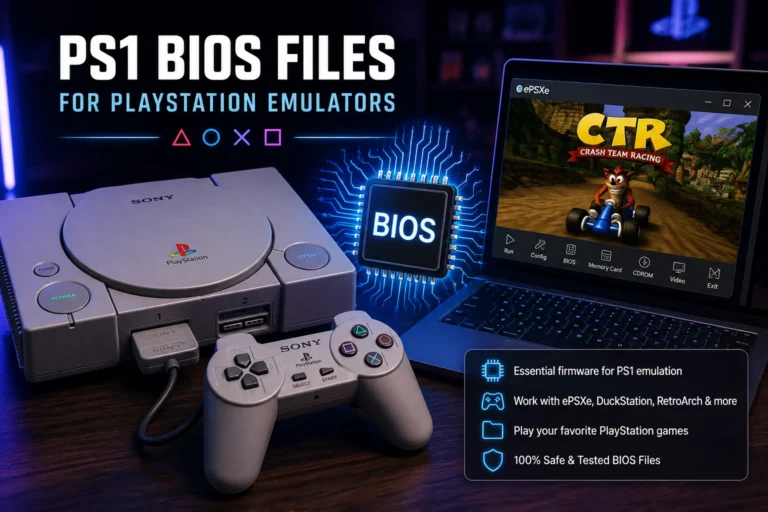
PS1 BIOS files are small system files, usually under 512KB, that tell your emulator how to boot a PlayStation game the way the real console would. Without one, most PS1 emulators either refuse to run games or show a black screen right at startup.
Think of it like this: the BIOS is the console’s internal boot instructions, baked into a physical chip inside every original PlayStation. When Sony built the PS1, they programmed this chip to handle the startup logo, memory card checks, and basic hardware communication before a single game even loads. Emulators don’t have that chip, so they need a copy of that same code in file form to mimic it.
That’s the whole reason PS1 BIOS files exist in the emulation world. They’re not part of the game itself — they’re a stand-in for hardware that isn’t there anymore.
Why Do You Even Need a BIOS File for PS1 Emulation?
You need a BIOS file because most accurate PS1 emulators are built to require real console firmware, not a fake substitute. A few emulators offer built-in “HLE” (High-Level Emulation) BIOS options that skip this step, but they’re noticeably less accurate.
Here’s a real example. RetroArch’s Beetle PSX core can technically run without a real BIOS file using its HLE mode. But testers on forums like NicoHood’s PSX compatibility threads have documented dozens of games — including Metal Gear Solid and Final Fantasy IX — that show graphical glitches or crash entirely without the actual scph BIOS loaded.
So while you can technically skip it, you’re trading stability for convenience. Most experienced emulation users just don’t bother with HLE anymore because actual BIOS files fixed too many random bugs to ignore.
The Most Common PS1 BIOS Files (And What Makes Them Different)
Not all PS1 BIOS files are the same, and this trips up a lot of first-time users. Sony released multiple BIOS versions over the PS1’s decade-long production run, tied to different console models and regions.
Here’s a quick comparison of the ones you’ll run into most often:
| BIOS File | Region | Console Model | Size |
|---|---|---|---|
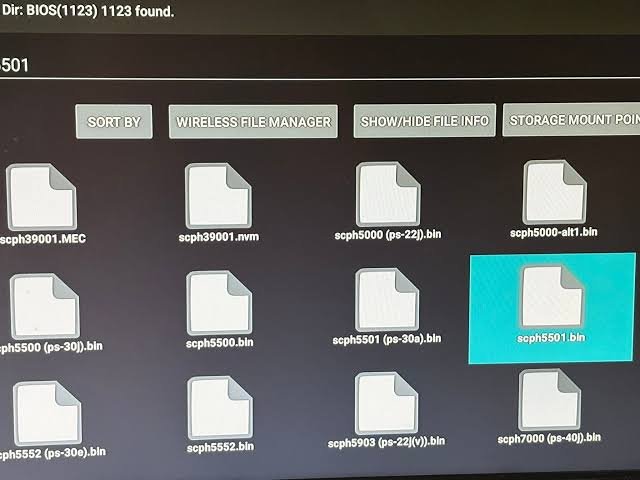
| scph1001.bin | North America (NTSC-U) | Original PS1 | 512KB |
| scph5501.bin | North America (NTSC-U) | PS1 (v3.0) | 512KB |
| scph5500.bin | Japan (NTSC-J) | PS1 (v3.0) | 512KB |
| scph-70012.bin | North America | PSone (slim model) | 512KB |
scph1001.bin — The North American Standard
This is one of the oldest and most widely used BIOS files for US region games. It matches the original fat PlayStation console sold in North America starting in 1995.
If a game you’re loading says “USA” in its file name, this is often the BIOS people pair with it. It’s also the one referenced in that classic Portuguese-language error message, “adiciona a bios: scph1001.bin,” which basically just tells the user to add this specific BIOS file to their emulator’s BIOS folder.
scph5501.bin — The One Most Guides Recommend
Ask around any PS1 emulation forum, and scph5501.bin comes up constantly. It’s a slightly later North American BIOS revision, version 3.0, and it tends to have better compatibility across a wider range of games compared to scph1001.bin.
DuckStation’s own documentation lists scph5501.bin as one of the “known good” dumps for NTSC-U emulation. That’s part of why it’s become the unofficial default recommendation in most setup tutorials.
scph5500.bin — Japan’s Version
This one pairs with Japanese region games (NTSC-J). If you’re trying to run Japanese-only PS1 titles that never got a US release — things like certain Suikoden imports or untranslated RPGs — scph5500.bin is the correct match.
Using a US BIOS with a Japanese game usually still works, but you might notice slight menu or region-lock issues in specific titles.
scph-70012.bin — The Later PSone Model
Sony released a smaller, redesigned “PSone” console in 2000, and it shipped with updated firmware. scph-70012.bin corresponds to that slim model.
Functionally, it behaves almost identically to scph5501.bin for most games. The differences mostly matter to hardware collectors and BIOS-accuracy purists, not casual emulator users.
PS1 BIOS Regions Explained — Does It Actually Matter Which One You Use?
Yes, it matters, but maybe not as much as some guides make it sound. Region mismatches between your BIOS and your game files can cause slowdown, wrong-language menus, or in rare cases, a game refusing to boot at all.
A concrete example: running a PAL (European) game with an NTSC-U BIOS sometimes causes a speed mismatch, because PAL games run at 50Hz while NTSC runs at 60Hz. This can make a game feel slightly slower or faster than it should, even if it technically loads fine.
The safe rule most experienced users follow:
- Use scph1001.bin or scph5501.bin for US (NTSC-U) games
- Use scph5500.bin for Japanese (NTSC-J) games
- Use a PAL-specific BIOS (like scph5502.bin) for European games
- Match the region printed on the game’s disc label whenever possible
How to Set Up PS1 BIOS Files on an Emulator (Step-by-Step)
Setup differs slightly depending on which emulator you’re using. Here’s how it works on the three most popular ones people ask about.
Setting Up on ePSXe
- Download ePSXe and extract it to a folder on your PC.
- Create a folder inside it named “bios” if one doesn’t already exist.
- Place your BIOS file (for example, scph1001.bin) directly inside that bios folder.
- Open ePSXe, go to Config > BIOS, and select the file from the list.
- Load your game ISO and hit Run.
Setting Up on DuckStation
- Open DuckStation and go to Settings > BIOS Settings.
- Click “Change” next to the region you want to configure.
- Browse to wherever your scph5501.bin or scph5500.bin file is saved.
- DuckStation auto-detects the BIOS version and region — you’ll see a green checkmark if it’s valid.
- Start any game; it’ll now use that BIOS automatically.
Setting Up on RetroArch (Beetle PSX Core)
- Download the Beetle PSX (or Beetle PSX HW) core through RetroArch’s core downloader.
- Go to your RetroArch main folder and find the “system” subfolder.
- Drop your BIOS files there — no renaming needed if they’re already named correctly (scph5501.bin, scph1001.bin, etc.).
- Load your core, then load your content (game file).
- If RetroArch shows a BIOS-missing error, double-check the file name matches exactly, including lowercase letters.
That last point trips people up constantly. RetroArch is case-sensitive about BIOS file names on some systems, especially Linux-based setups.
“Adiciona a Bios: scph1001.bin” — What This Error Actually Means
This phrase shows up a lot in search results, and it’s simply Portuguese for “add the BIOS: scph1001.bin.” It’s an error message from emulators like ePSXe when the program can’t find that specific BIOS file in its expected folder.
The fix is straightforward:
- Confirm the BIOS file is actually named scph1001.bin, not scph1001.bin.zip or scph1001(1).bin
- Make sure it’s sitting in the correct bios folder, not just anywhere on your computer
- Restart the emulator after adding the file — some versions don’t detect new files while running
I’ve seen users spend an hour troubleshooting this when the actual problem was a leftover “.zip” extension nobody noticed after downloading.
Common Mistakes People Make With PS1 BIOS Files
A few mistakes come up again and again in emulation communities:
- Renaming BIOS files incorrectly. Some users rename scph5501.bin to something like “bios.bin” thinking it’ll still work — it usually won’t, because emulators check for specific known file names or checksums.
- Using a corrupted or incomplete download. A real scph5501.bin file should be exactly 524,288 bytes. If yours is significantly smaller, it’s broken.
- Mixing up region and version numbers. scph5500 and scph5501 look nearly identical in name but serve different regions entirely.
- Forgetting the file extension. Windows sometimes hides file extensions by default, so a file named “scph1001.bin.bin” looks correct but isn’t.
- Assuming newer BIOS versions are always better. They’re not — scph-70012.bin isn’t objectively superior to scph5501.bin, just newer.
Is It Legal to Download PS1 BIOS Files?
Legally, BIOS files are Sony’s copyrighted firmware, so downloading them from third-party sites technically violates copyright law in most countries, including the US. The only fully legal method is dumping the BIOS directly from a PlayStation console you personally own, using tools like a modchip or specific homebrew software.
In practice, most emulation communities treat BIOS dumping the same way they treat game ROMs — a legal gray area that’s rarely enforced against individual users. But that doesn’t make it officially legal, and sites hosting these files for direct download are generally operating outside copyright law.
If you own an original PS1, dumping your own BIOS is the cleanest way to stay on the right side of this.
FAQ Section
Q: Which PS1 BIOS file should I use for US games?
A: Use scph1001.bin or scph5501.bin — both are North American (NTSC-U) BIOS versions. scph5501.bin tends to have slightly better compatibility across more titles, based on most emulator documentation.
Q: Can I run PS1 games without a BIOS file at all?
A: Yes, using HLE (High-Level Emulation) mode found in emulators like RetroArch’s Beetle PSX core. But expect glitches or crashes in certain games, since HLE doesn’t replicate real console behavior perfectly.
Q: Why does my emulator say “adiciona a bios: scph1001.bin”?
A: This means the emulator can’t locate the scph1001.bin file in its BIOS folder. Check that the file is correctly named, unzipped, and placed in the exact folder your emulator expects.
Q: What’s the difference between scph5500.bin and scph5501.bin?
A: scph5500.bin is the Japanese (NTSC-J) region BIOS, while scph5501.bin is the North American (NTSC-U) version. They’re not interchangeable if you want accurate region-specific behavior.
Q: How big should a legitimate PS1 BIOS file be?
A: Real PS1 BIOS files are exactly 524,288 bytes (512KB). If your downloaded file is a different size, it’s either corrupted or not an actual BIOS dump.
Q: Does the PS1 BIOS version affect game speed?
A: It can, especially with region mismatches. Pairing an NTSC BIOS with a PAL game (or vice versa) sometimes causes timing issues since NTSC runs at 60Hz and PAL runs at 50Hz.
Conclusion
Getting PS1 emulation running smoothly comes down to one thing: matching the right BIOS file to the right region and emulator, and making sure the file itself isn’t corrupted or misnamed. Once that’s sorted — scph5501.bin for most US setups, scph5500.bin for Japanese games — everything else in the setup process is just following a checklist.
For more useful articles, visit my website: PStoBios.com.