Call us now:



A PS2 Emulator BIOS is the PlayStation 2 system software that PCSX2 uses to start games and reproduce the console’s basic startup behavior. PCSX2 can handle the emulation itself, but it still needs a compatible PS2 BIOS dump before you can properly boot a game.
Think of the BIOS as the small piece of software that sits between the PS2 hardware and the game. On a real console, you rarely think about it. In PCSX2, you have to provide it yourself.
For example, if PCSX2 is installed correctly but the BIOS list is empty, a game such as Kingdom Hearts or Gran Turismo 4 will not suddenly work just because the game ISO is present. The emulator still needs a valid BIOS.
Why does PCSX2 need a BIOS?
The BIOS handles early system tasks such as the PS2 startup process and hardware initialization. PCSX2 uses that system software to recreate behavior that the original console expected.
This is why downloading a PS2 game ISO alone does not complete the setup. You need the emulator, a legal game dump, and a compatible BIOS dump.
What does a BIOS file contain?
A PS2 BIOS dump contains firmware taken from an actual PlayStation 2 console. It can include information related to the console model, region, and system version.
You may see BIOS entries with names that mention things like:
- USA or NTSC-U
- Japan or NTSC-J
- Europe or PAL
- A console model number
- A firmware date or BIOS version
The exact filename is less important than whether PCSX2 can identify the file as a valid BIOS image.
How Does a PS2 Emulator BIOS Work in PCSX2?
PCSX2 loads the BIOS before it starts a PS2 game. The BIOS provides the startup environment, then PCSX2 continues emulating the console hardware while the game runs.
A useful way to think about it is this: the emulator is the machine, while the BIOS provides part of the console’s original startup software.
That distinction helps explain a common mistake.
People sometimes place a BIOS file into the PCSX2 folder and assume every game should now boot automatically. If PCSX2 cannot read the file, nothing changes.
BIOS vs. emulator files
These are separate things:
| Component | What it does | Example |
|---|---|---|
| PCSX2 | Emulates PS2 hardware | PCSX2 installation |
| BIOS | Provides PS2 system firmware | A BIOS dump from your console |
| Game dump | Contains the actual game | ISO, CHD, or another supported format |
| Memory card | Stores game saves | Virtual .ps2 memory card |
A 4 GB game ISO cannot replace a BIOS, and a BIOS file cannot replace a game dump.
How Do You Set Up BIOS for PS2 Emulator PCSX2?
The safest method is to create a BIOS dump from a PS2 console you own and then load that dump into PCSX2. Avoid random BIOS download sites. Besides legal concerns, those files are frequently incomplete, mislabeled, or bundled in messy archives.
Here is the setup process.
Step 1: Get a legal BIOS dump
You need a BIOS dump produced from a compatible PlayStation 2 console.
For example, a European PS2 can provide a PAL BIOS, while a North American PS2 generally provides an NTSC-U BIOS. Keep the original dump unchanged until you confirm that PCSX2 detects it.
Step 2: Open the PCSX2 BIOS settings
Launch PCSX2 and go to the area where BIOS files are configured. The exact menu wording can differ between PCSX2 releases, so do not worry if your screen looks slightly different from an older guide.
The important part is finding the BIOS directory and BIOS selection screen.
Step 3: Select the BIOS folder
Point PCSX2 to the folder containing your dumped BIOS file.
A simple folder such as:
Documents\PCSX2\bios
is easier to manage than scattering BIOS files across multiple downloads folders.
If you have three BIOS dumps, keep them together. That makes it much easier to see which one PCSX2 is actually detecting.
Step 4: Choose a BIOS entry
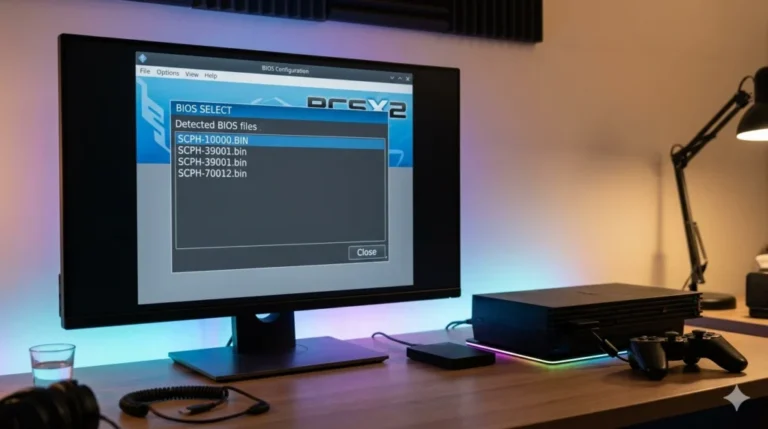
After scanning the folder, PCSX2 should display one or more BIOS entries.
You may see entries for different regions and console versions. Select the BIOS that matches the console and region you want to emulate.
For example, if you are testing a North American copy of Final Fantasy X, starting with a USA BIOS is a sensible choice.
Step 5: Test the setup
Save the BIOS configuration and start PCSX2.
If the BIOS list appears normally and the emulator can boot into the PS2 system screen or launch a game, the basic setup is working.
Do not change ten settings at once. Test the BIOS first. Then deal with graphics, controllers, and performance separately.
What BIOS Files Does PCSX2 Accept?
PCSX2 expects a valid BIOS image that it can identify and load. The filename itself can vary, so a strange-looking name does not automatically mean the file is broken.
You may see files with names ending in extensions such as .bin, depending on how the BIOS was dumped and stored.
What matters most is whether PCSX2 recognizes the contents.
Common BIOS file problems
A file can fail even when it looks correct in Windows Explorer.
For example:
SCPH-70012.bin
may look like a perfectly reasonable BIOS filename, but if the file is incomplete or damaged, PCSX2 may reject it.
Another common problem is downloading a ZIP archive, extracting only part of its contents, and pointing PCSX2 at the wrong folder.
How many BIOS files do you need?
Usually, one valid BIOS is enough to get started.
You might keep several BIOS dumps if you own multiple PS2 models or want to test different regions. For example, someone with USA and Japanese hardware may have two or more usable BIOS entries.
There is no performance bonus for collecting 20 BIOS files.
One working BIOS is better than a folder full of questionable files.
How Do You Fix PCSX2 BIOS Errors?
Most BIOS problems are simple file-path or file-integrity problems. Start with the basics before changing emulator settings.
1. BIOS not found
If PCSX2 reports that no BIOS is found, check the selected BIOS folder first.
Make sure:
- The folder is correct.
- The BIOS file is actually inside that folder.
- You did not select a ZIP file instead of an extracted BIOS file.
- PCSX2 has permission to read the folder.
A common example is selecting:
Downloads\PS2 BIOS
while the actual BIOS is still inside:
Downloads\PS2 BIOS\extracted\
That one extra folder can explain the whole error.
2. No BIOS image detected
This usually points to an invalid, incomplete, or unsupported file.
Try placing a known-good BIOS dump into a clean folder and scanning that folder again.
If PCSX2 detects one file but ignores another, the second file is worth checking rather than renaming it repeatedly.
3. Game starts with a black screen
A black screen does not always mean the BIOS is bad.
The problem could come from graphics settings, an incompatible game image, a broken patch, or an emulator configuration issue.
For example, if one game produces a black screen while the PS2 BIOS menu itself starts normally, your BIOS is probably not the main problem.
4. BIOS is detected but PCSX2 will not boot
Check that the emulator is fully installed and updated to a stable version.
Then test a second game dump, if available. A faulty ISO can waste an hour because it looks like a BIOS problem from the user’s point of view.
5. Wrong region or incompatible BIOS
Try a BIOS from the same general region as your game.
For instance:
- USA game → USA BIOS
- Japanese game → Japan BIOS
- European game → Europe BIOS
PCSX2 can handle many regional combinations, so this is not a hard rule for every title. It is simply a good troubleshooting starting point.
Should You Use a USA, Japan, or Europe BIOS?
Usually, use the BIOS from the region of the console you dumped it from and test the game normally.
Region differences can affect startup behavior, system language, and compatibility with certain software. A BIOS does not magically convert a PAL game into an NTSC game, so do not expect region selection to solve every video problem.
Consider a simple case.
You have a Japanese PS2 BIOS and a Japanese copy of Dragon Quest VIII. That is a clean pairing for testing. If you then load a European game and start seeing unexpected behavior, try the matching European setup before changing unrelated graphics options.
What Are the Most Common BIOS Setup Mistakes?
A few mistakes show up again and again.
Mistake 1: Using random BIOS downloads
This creates two problems at once: legality and reliability.
A file named ps2_bios.zip from an unknown website might contain outdated, modified, duplicate, or broken files. Dumping the BIOS from your own console gives you a known source.
Mistake 2: Putting BIOS files in the wrong folder
This sounds trivial, but it causes a huge number of failed setups.
Suppose your file is stored at:
C:\PS2\BIOS\bios.bin
but PCSX2 is looking in:
C:\Users\Name\Documents\PCSX2\bios
The file can be perfectly valid and still remain invisible.
Mistake 3: Renaming files unnecessarily
Users sometimes rename BIOS files to make them “look right.”
That rarely fixes anything.
If a BIOS file is valid and PCSX2 detects it, the filename is already doing its job. If PCSX2 rejects the file, changing bios.bin to ps2bios.bin does not repair damaged firmware.
Mistake 4: Expecting BIOS settings to increase FPS
The BIOS is not a performance switch.
Changing BIOS files will not turn a 30 FPS game into a stable 60 FPS game by itself. Performance problems are usually connected to graphics settings, CPU performance, renderer choices, game-specific settings, or the PCSX2 build you are using.
For example, if God of War II runs at 25 FPS on a weak CPU, replacing one valid BIOS with another is unlikely to solve that bottleneck.
What Settings Should You Check After BIOS Setup?
Once the BIOS works, leave it alone and move on to the other parts of the emulator.
Graphics
Start with a sensible renderer and native internal resolution. If a game runs badly, reduce resolution before changing a pile of advanced options.
A practical test is 2x native resolution. If performance becomes stable, you can try 3x later.
Controller
Map your gamepad before troubleshooting games.
A BIOS test with a broken controller setup can be confusing because the emulator may appear frozen when the real issue is that no input is being registered.
Game directory
Keep your game dumps in one clean folder.
For example:
D:\PS2 Games\
Point PCSX2 to that location, scan it, and avoid moving files around after creating game shortcuts or per-game settings.
Speed settings
Leave advanced speedhacks and game-specific tweaks alone until the basic setup is stable.
This is one of my strongest recommendations for beginners: get one game working at normal settings first. Then tune performance.
Why Does BIOS Setup Cause So Much Confusion?
The confusing part is that the BIOS is only one piece of the whole PS2 emulation setup.
A person can have:
- A perfectly valid BIOS
- A damaged game dump
- A misconfigured controller
- A graphics renderer problem
and still assume the BIOS is responsible.
That is why troubleshooting should happen in a fixed order.
First, confirm PCSX2 sees the BIOS. Then confirm the BIOS can boot. Then test one game. After that, work on graphics or performance.
That simple order saves a lot of wasted time.
What Should You Know Before Searching for BIOS for PS2 Emulator PCSX2?
Searches for bios for ps2 emulator pcsx2 often lead people to file-sharing pages. Be careful with those results.
The practical approach is to use your own console dump, keep the original file backed up, and let PCSX2 scan it rather than relying on a random renamed file from the web.
A BIOS dump is usually small compared with a PS2 game. That makes it easy to back up to a separate storage location, such as an external drive, after confirming that PCSX2 detects it correctly.
For example, if your working BIOS file is stored in D:\PS2 Backup\BIOS\, you can point PCSX2 to it without keeping several duplicate copies in random folders.
A Simple Troubleshooting Order That Actually Works
When PCSX2 refuses to cooperate, use this order:
- Check the BIOS folder path.
- Confirm PCSX2 detects the BIOS.
- Boot the BIOS or system menu if available.
- Test one known-good game dump.
- Check controller input.
- Check graphics renderer and internal resolution.
- Only then adjust advanced performance settings.
For a real example, imagine PCSX2 detects your BIOS but Gran Turismo 4 crashes. That is already useful information. The BIOS layer has passed a basic test, so your next suspect should be the game image, game-specific compatibility, or graphics settings.
FAQ
Do I need a BIOS to use PCSX2?
Yes. PCSX2 requires a compatible PlayStation 2 BIOS dump for normal PS2 emulation. For example, installing PCSX2 and adding a game ISO without a BIOS will leave the setup incomplete.
Where should I put my PS2 BIOS file?
Put the BIOS dump in the folder configured in PCSX2’s BIOS settings. A dedicated folder such as Documents\PCSX2\bios makes troubleshooting easier because you can clearly see which files PCSX2 is scanning.
Can I download a PS2 BIOS online?
The safest approach is to dump the BIOS from a PlayStation 2 that you own rather than downloading copyrighted BIOS files from an unofficial site. Random downloads can also be corrupt or incorrectly labeled, which makes troubleshooting harder.
Can I use any PS2 BIOS with PCSX2?
PCSX2 supports BIOS dumps from compatible PS2 systems, but regional and model differences can matter for some games. For example, pairing a USA BIOS with a USA game is a sensible first test before investigating other compatibility issues.
Why does PCSX2 say no BIOS found?
The most common reasons are an incorrect BIOS folder, a file still trapped inside a ZIP archive, or an invalid BIOS image. Check the folder path first; moving a valid file to the exact directory PCSX2 scans often fixes the problem immediately.
Does a better BIOS improve PS2 graphics or FPS?
No. A different valid BIOS does not provide a direct FPS boost or higher image quality. A game running at 40 FPS on your current hardware will usually need graphics or performance adjustments rather than a different BIOS file.
Conclusion
Getting the BIOS right is mostly about using a valid dump, pointing PCSX2 to the correct folder, and testing one part of the setup at a time.
The single most useful rule is simple: if PCSX2 detects and boots a valid BIOS, stop changing the BIOS and troubleshoot the actual game, graphics, or controller settings instead.
For more useful articles, visit my website: PStoBios.com.