Call us now:


If you’ve just installed PCSX2 and hit a wall the moment you tried to load a game, you’re not alone. The fix is simple: PCSX2 needs a real PS2 BIOS file to run any game, and that file has to come from a PlayStation 2 console you own — the emulator can’t generate one on its own. This guide walks through exactly how to get that file, add it correctly, and fix the errors that trip up almost everyone on their first try.
I’ve set up PCSX2 on three different machines over the years, and honestly, the BIOS step is where most people get stuck — not because it’s technically hard, but because half the tutorials online skip the parts that actually matter.
What Is a PCSX2 BIOS and Why Do You Need One?
A BIOS, in this context, is the firmware that originally ran inside your physical PS2 console. It’s the small chunk of code that tells the system how to boot, how to read discs, and how to talk to the hardware.
PCSX2 mimics the PS2’s hardware in software, but it doesn’t include this firmware — Sony never gave permission for that, and legally it can’t be bundled with the emulator. So when someone searches “bios ps2 pcsx2” or “ps2 bios rom for pcsx2,” what they actually need is a small file, usually around 4MB, extracted from an actual console.
Without it, PCSX2 simply has nothing to boot from. It’s like having a game console with no power-on sequence — the hardware might be fine, but nothing happens when you hit start.
Is It Legal to Use a PS2 BIOS with PCSX2?
Yes, if you dump the BIOS from a PS2 console you personally own. Downloading a PS2 BIOS rom from a random website you didn’t create yourself sits in a legal gray zone at best, and often violates copyright law depending on your country.
PCSX2’s own development team has said this openly on their official site for years — they recommend dumping your own BIOS and actively discourage downloading one from third-party sources. Practically speaking, millions of people do download bios pcsx2 files from random forums anyway. But two real risks come with that:
- The file could be corrupted, incomplete, or mismatched to your region, causing crashes down the line.
- Some “BIOS pack” downloads bundle malware, since these sites aren’t exactly held to app-store standards.
If you still own a PS2, even a broken one that powers on, dumping your own BIOS takes maybe 15 minutes and avoids both problems entirely.
How to Get Your PS2 BIOS for PCSX2 (The Right Way)
What You Need Before You Start
- A working PS2 console (fat or slim model both work)
- A USB drive, formatted FAT32, under 2GB works fine
- A copy of “Free MCBoot” or a similar homebrew loader (needed on consoles without a modchip)
- A PS2 memory card to install Free MCBoot onto
- The homebrew app “PS2 BIOS Dumper” (widely available, free, open-source)
Step-by-Step: Dumping Your BIOS from a Real PS2
- Install Free MCBoot on your memory card following its standard setup guide — this lets your PS2 run unsigned software without a modchip.
- Copy the PS2 BIOS Dumper app onto your USB drive.
- Boot your PS2 with the memory card inserted, launch Free MCBoot, then load the BIOS Dumper from USB.
- Run the dumper — it reads the firmware directly from your console’s memory and writes it as a file, usually named something like SCPH-90001.bin.
- Copy that file off the USB drive onto your PC. That’s your BIOS file, ready for PCSX2.
The whole process takes less time than setting up a new phone. If your PS2 won’t power on at all, dumping isn’t possible, and that’s really the only case where downloading becomes the practical option — just be picky about the source.
How to Add the BIOS File to PCSX2
PCSX2 on Windows
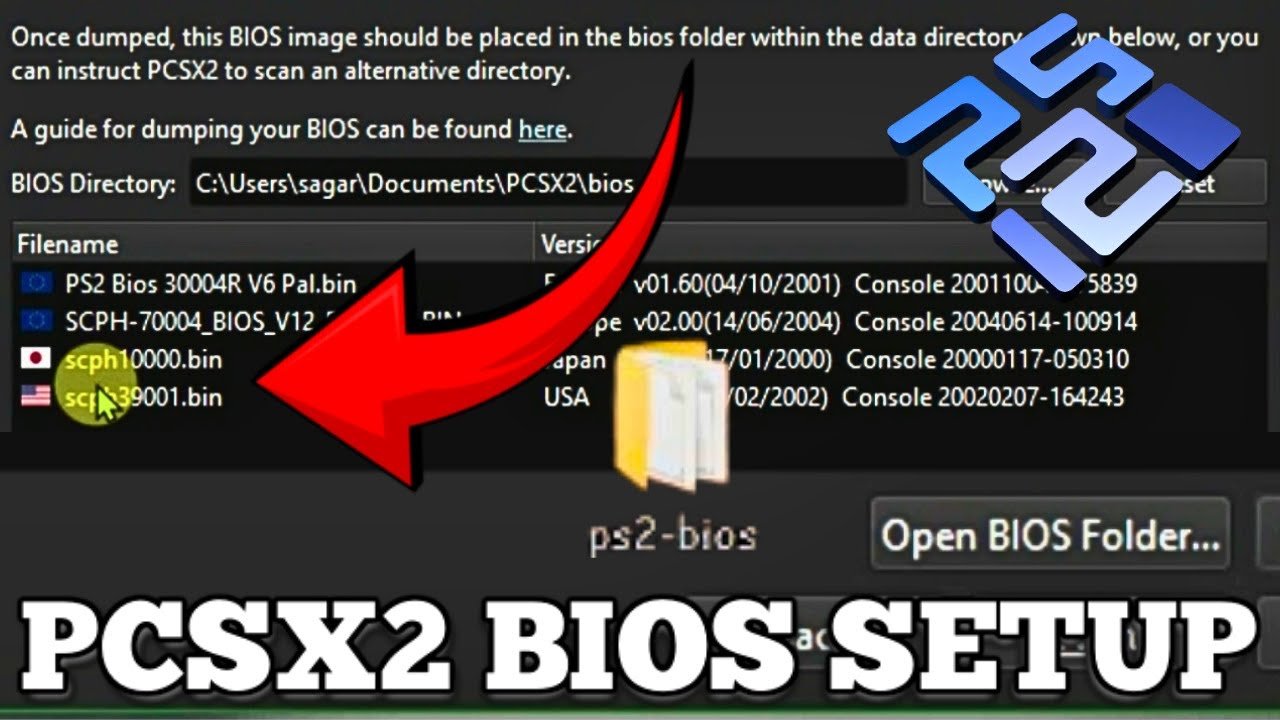
- Open PCSX2 and go to Settings > BIOS.
- Click Browse next to the BIOS folder path and point it to wherever your BIOS file is saved.
- PCSX2 should automatically detect the file and list it, showing details like region and version (for example, “Europe v02.20”).
- Select it from the list. Done.
PCSX2 on macOS and Linux
The process is nearly identical — same Settings menu, same BIOS folder selection. The main difference is where PCSX2 stores its config folder by default:
- Windows:
Documents\PCSX2\bios - macOS:
~/Library/Application Support/PCSX2/bios - Linux:
~/.config/PCSX2/bios
Drop your .bin file into that folder before opening the BIOS settings screen, and PCSX2 usually picks it up without needing manual browsing.
Which BIOS Region Should You Choose?
This trips people up more than it should. PS2 games were region-locked (NTSC-U for North America, PAL for Europe, NTSC-J for Japan), and your BIOS region should generally match the games you plan to play.
| Your Game’s Region | Recommended BIOS |
|---|---|
| US releases (NTSC-U) | USA BIOS (e.g., SCPH-39001) |
| European releases (PAL) | Europe BIOS (e.g., SCPH-70004) |
| Japanese releases (NTSC-J) | Japan BIOS (e.g., SCPH-90000) |
You can technically run a US game on a European BIOS using PCSX2’s region-override settings, but I’ve seen this cause slowdown issues and audio desync in games like Persona 4, so matching the region properly saves headaches later.
Common PCSX2 BIOS Errors and How to Fix Them
“BIOS Not Found” or Empty BIOS List
This is the single most common complaint in PCSX2 forums. The BIOS list on the settings screen just shows nothing.
Likely causes and fixes:
- The file isn’t actually a valid BIOS dump — re-check the file size (a real one is roughly 4MB, not 200KB or 20MB).
- Wrong folder selected — double check you pointed PCSX2 to the exact folder containing the .bin file, not a parent folder.
- The file extension got changed by accident during download — it should stay as .bin, not .zip or .rar (extract it first).
PCSX2 Crashes After Selecting BIOS
Usually this points to a corrupted download. If you got your bios pcsx2 download from a third-party site, there’s a decent chance the file transfer was incomplete.
Fix: check the file size against known BIOS sizes (most PS2 BIOS files are between 2MB and 4MB). If it’s off, the file is bad — re-download from a different source or dump your own.
Black Screen After BIOS Loads
The BIOS loads fine, PCSX2 opens, but the screen stays black once you try launching a game. This one’s rarely a BIOS problem at all — it’s almost always a graphics plugin (GS) setting.
Fix: go to Settings > Graphics and try switching the renderer between Direct3D 11, Direct3D 12, and Vulkan. On older laptops with integrated Intel graphics, I’ve had to drop down to software rendering just to get a stable image.
Wrong Region BIOS Causing Game Crashes
Symptoms include a game booting straight to a PS2 browser screen instead of loading, or crashing right after the developer logo. Nine times out of ten, this is a region mismatch between the game ISO and the BIOS.
Fix: match your BIOS region to your game’s region using the table above. If you regularly play games from multiple regions, keep 2-3 BIOS files (US, EU, JP) in your folder — PCSX2 lets you switch between them anytime in settings.
PCSX2 BIOS Download: What to Watch Out For
If dumping your own really isn’t an option, here’s what actually matters when searching for a pcsx2 bios download:
- Avoid sites with excessive pop-ups or forced app installs — that’s a red flag for bundled malware.
- Check file size before running anything — a legitimate BIOS file sits around 2-4MB. Anything wildly different is fake or broken.
- Scan the download with something like Windows Defender or Malwarebytes before opening it.
- Stick to established emulation communities rather than random blogspot-style sites that rank for terms like “psx2 bios rom” purely through SEO tricks, not credibility.
I’ll say this plainly: a good chunk of sites ranking for “bios pcsx2 download” exist purely to serve ads or push shady downloads. Reddit’s r/PCSX2 community and the official PCSX2 wiki are far more reliable starting points for guidance, even if they don’t host the files directly.
How Do You Know Your BIOS Is Working Correctly?
A properly working BIOS shows up in PCSX2’s settings with full details — region, version number, and a green checkmark or similar indicator depending on your PCSX2 version. When you boot a game, you should briefly see the PS2 startup animation (the spinning logo sequence) before the game itself loads.
If PCSX2 jumps straight from a black screen into gameplay with no PS2 logo at all, something’s off, even if the game technically runs. In my experience, that usually means the BIOS is present but slightly mismatched to the game’s region — it works, but not the way it’s supposed to.
FAQ Section
Do I need a BIOS file for every PS2 game I want to play in PCSX2?
No, one BIOS file works for all games from the same region. You only need multiple BIOS files if you plan to play games from different regions, like both US and Japanese titles.
Can I use a PS3 or PS4 BIOS with PCSX2?
No, PCSX2 only emulates the PS2, so it requires a PS2-specific BIOS file. A PS3 or PS4 BIOS is a completely different format and won’t be recognized at all.
Why does PCSX2 say my BIOS is invalid even though I downloaded it correctly?
This usually means the file got corrupted during download or the file extension changed from .bin to something else. Check the file size — a real PS2 BIOS is roughly 2-4MB — and re-download from a different source if it doesn’t match.
Is there a way to dump a BIOS without Free MCBoot?
Free MCBoot is the most common method, but if your PS2 already has a modchip installed, you can often use existing homebrew tools directly without needing FMCB. Consoles with no modchip and no FMCB genuinely can’t run the dumper software.
Does the BIOS affect PCSX2’s performance or FPS?
Not really — the BIOS just handles booting, not ongoing performance during gameplay. FPS issues are almost always tied to your graphics plugin settings, CPU speed, or game-specific compatibility problems, not the BIOS itself.
Conclusion
Getting the BIOS right is the one step in PCSX2 setup that can’t be skipped or faked, so take the ten minutes to dump your own from a real PS2 if you have one sitting around. It’s the safest route, it’s free, and it saves you from chasing down mystery crashes later that actually trace back to a bad or mismatched file.
For more useful articles, visit my website: PStoBios.com.