Call us now:



PCSX2 is a free PlayStation 2 emulator that lets you play PS2 games on a Windows, Mac, or Linux computer. It’s been around since 2002, and it’s still the most reliable way to run PS2 discs and ISOs on modern hardware.
Here’s why that matters. The PS2 sold over 155 million units worldwide, making it the best-selling console ever. A lot of people who grew up with it now own a laptop that’s more powerful than the console itself — but no easy way to replay Shadow of the Colossus or Final Fantasy X unless they dig out an old console and a CRT.
That’s the gap PCSX2 fills. You get PS2-quality games running at higher resolutions, smoother frame rates, and even some texture upgrades, all on hardware you already own.
I’ve tested it on a five-year-old laptop with a mid-range GPU, and games like God of War II ran at a locked 60fps upscaled to 1080p. On the original hardware, that game struggled to hold 30fps. That’s the real appeal — not just convenience, but actually improving on the original experience.
Is the PCSX2 Download Safe and Legal?
The PCSX2 emulator itself is completely legal. It’s open-source software, and the team behind it doesn’t include any copyrighted Sony code or games in the download.
Where things get tricky is the games and the BIOS file. Downloading a PS2 BIOS from a random file-sharing site is technically piracy, even though a five-second Google search makes it look normal. The BIOS is copyrighted firmware that belongs to Sony.
The legal way to do this:
- Dump the BIOS from a PS2 console you actually own, using a memory card and a small tool called FreeMcBoot or similar.
- Only load game ISOs ripped from discs you own.
Most casual users skip this and download BIOS files from forums anyway. I’m not going to pretend that doesn’t happen — it’s extremely common. But if you’re asking “is this safe,” downloading the PCSX2 program from the official site (pcsx2.net) is 100% safe. It’s the game files and BIOS sourcing where the legal risk actually sits.
What Do You Need Before You Download PCSX2?
PC Requirements That Actually Matter
PCSX2 isn’t as demanding as people assume, but PS2 emulation is oddly CPU-heavy compared to newer console emulators. A weak processor will bottleneck you faster than a weak graphics card will.
Minimum specs for playable performance:
- CPU: Intel Core i5 (6th gen or newer) or AMD Ryzen 3
- RAM: 4GB minimum, 8GB recommended
- GPU: Any DirectX 11 compatible card (even integrated graphics work for 2D-heavy games)
- Storage: 100MB for the emulator itself, plus space for game ISOs (typically 1-4GB per game)
- OS: Windows 10/11, macOS 12+, or a modern Linux distro
If you’re trying to run something demanding like Gran Turismo 4 at 4x internal resolution, you’ll want a more recent CPU — something like a Ryzen 5 5600 or Intel i5-12400. On older dual-core machines, expect stuttering in busy scenes no matter what settings you pick.
Where to Get a Legal BIOS File
You cannot run PCSX2 without a BIOS file. This is the one thing that trips up almost every beginner.
The BIOS is a small file (usually under 1MB) that contains the PS2’s startup firmware. PCSX2 needs it to boot games, the same way your actual PS2 needed it to boot discs.
If you own a physical PS2, here’s the general process:
- Get a FreeMcBoot-compatible memory card (a modchip isn’t required for this method on older PS2 models).
- Use a tool like PS2 BIOS Dumper to extract the BIOS onto a USB drive connected to the console.
- Transfer that dumped file to your PC.
If you don’t own a PS2 anymore, this becomes murkier, and I’m not going to pretend there’s a fully clean workaround. Just know that BIOS files floating around forums are copyrighted material, full stop.
How to Do a PCSX2 Download (Step-by-Step)
This is where most guides overcomplicate things. The actual PCSX2 download process takes about five minutes.
Windows Installation
- Go to pcsx2.net and click the Downloads tab.
- Choose the latest stable release (as of writing, that’s the PCSX2 2.x branch, built on the QT interface).
- Download the Windows installer (.exe) or the portable .zip version.
- Run the installer, or extract the .zip to a folder like
C:\PCSX2. - Launch
pcsx2-qt.exe.
That’s it. No product key, no registration, no hidden costs.
macOS Installation
- Visit the official downloads page and select the macOS build.
- Download the .dmg file — it’s built for Apple Silicon (M1/M2/M3) as well as Intel Macs now.
- Drag PCSX2 into your Applications folder.
- On first launch, macOS will likely block it with a Gatekeeper warning. Go to System Settings > Privacy & Security and click “Open Anyway.”
Mac performance has genuinely improved a lot since PCSX2 added native Apple Silicon support in 2023. On an M2 MacBook Air, most games run full speed without any tinkering.
Linux Installation
- Download the AppImage from the official site — this works across most distros without needing separate builds.
- Right-click the file, go to Properties, and mark it executable (or run
chmod +x PCSX2.AppImagein terminal). - Double-click to run it, or launch from terminal.
Ubuntu and Fedora users can also find PCSX2 in some community repositories, but the AppImage is more consistently up to date.
How to Set Up PCSX2 After Installing It
Adding the BIOS
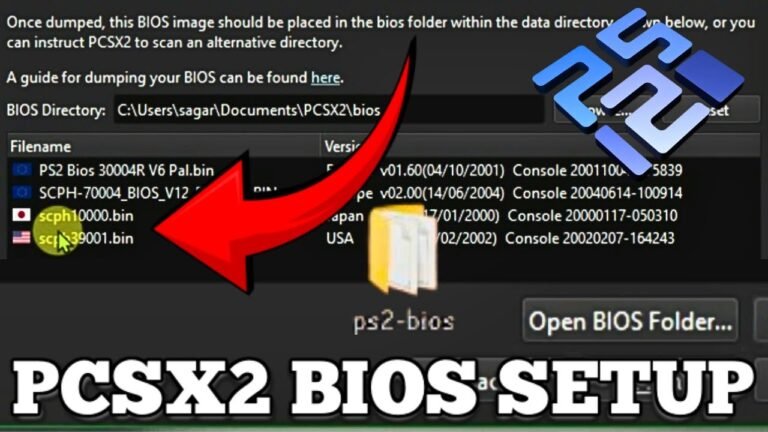
Once PCSX2 opens for the first time, it’ll ask you to point it to a BIOS folder.
- Create a folder anywhere on your PC (e.g.,
Documents/PCSX2/bios). - Drop your legally obtained BIOS file into it.
- In PCSX2, go to Settings > BIOS, then browse to that folder.
- The emulator should detect and list the BIOS automatically. If it shows up in red or doesn’t appear, the file is either corrupted or incomplete — this is one of the most common first-time errors.
Loading Your First Game
- Go to File > Start File, or drag your ISO directly onto the PCSX2 window.
- For physical discs, insert the disc and choose CDVD > Boot from disc drive.
- Wait for the game to load — some games (like Metal Gear Solid 3) have notoriously slow boot times even on original hardware, so don’t assume it’s frozen.
Getting the Best Graphics Settings
This is where PCSX2 actually beats the original console. Go to Graphics Settings and adjust:
- Renderer: Vulkan (fastest on most modern GPUs) or DirectX 11 on Windows
- Internal Resolution: 2x or 3x Native for a solid upgrade without heavy performance cost; 4x-6x if your GPU can handle it
- Anisotropic Filtering: 16x for sharper textures at distance
- Anti-aliasing: Not usually necessary above 2x resolution — it looks clean already
I usually recommend starting at 2x resolution and Vulkan renderer for anyone with a mid-range setup. Jumping straight to 8x internal resolution on an older GPU is the fastest way to turn a smooth game into a slideshow.
Common PCSX2 Problems and How to Fix Them
| Problem | Likely Cause | Fix |
|---|---|---|
| Game won’t boot, black screen | Bad or incomplete BIOS dump | Re-dump the BIOS or verify file size matches known good dumps (usually 4MB) |
| Audio crackling or delayed | Wrong audio backend | Switch to Cubeb in Audio settings |
| Frame rate drops in specific areas | CPU bottleneck, not GPU | Lower EE/VU clock cycle settings slightly, or reduce internal resolution |
| Save states won’t load | Version mismatch between PCSX2 builds | Stick to one version consistently, don’t mix save states across updates |
| Controller not detected | USB input plugin misconfigured | Go to Settings > Controllers, select the correct USB port index |
One thing most guides don’t mention: some games have specific quirks documented on the PCSX2 wiki’s compatibility list. For example, Okami had graphical glitches for years until a specific fix was patched in. If a game acts weird, check the compatibility list before assuming you did something wrong.
PCSX2 vs Other PS2 Emulators (ps2 emulador options)
People searching for “ps2 emulador” or “baixar emulador de ps2” are often looking for alternatives, especially outside English-speaking markets. Here’s an honest comparison.
| Emulator | Platform | Status | Notes |
|---|---|---|---|
| PCSX2 | Windows, Mac, Linux | Actively developed | The standard choice, best compatibility |
| Play! | Windows, Mac, Android, iOS | Actively developed | Mobile-friendly, but less accurate than PCSX2 |
| AetherSX2 | Android | Discontinued (2023) | Was the go-to Android option before the developer pulled it |
| DamonPS2 | Android | Still available | Has a paid version; free version is ad-heavy and less accurate |
If someone tells you there’s a better desktop option than PCSX2 in 2024, they’re probably thinking of something outdated. For phones and tablets, Play! has gotten surprisingly good, but it’s still behind PCSX2 on raw compatibility numbers — PCSX2 claims over 90% of the PS2 library runs “playable or better” according to their own compatibility database.
Tips From Someone Who’s Broken This Setup More Than Once
A few things I’ve learned the hard way:
- Don’t download PCSX2 from third-party sites promising a “pre-configured” version with BIOS included. These are almost always outdated builds bundled with adware. Get it from pcsx2.net directly.
- Keep your ISOs organized in one folder and let PCSX2 index them through its Game Grid feature — trying to manually browse for files every time gets old fast.
- Update your GPU drivers before troubleshooting anything else. I’ve wasted an hour tweaking emulator settings before realizing an outdated Nvidia driver was the actual issue.
- If a game runs slow, check whether it’s CPU-limited before touching GPU settings. Task Manager’s performance tab will show you if one CPU core is maxed out while your GPU sits idle — that’s your answer right there.
None of this is complicated once you’ve done it once. The first setup is the only annoying part.
FAQ Section
Is PCSX2 free to download?
Yes, PCSX2 is completely free and open-source. You never need to pay for the emulator itself — only be cautious of third-party sites that try to charge for it or bundle it with unwanted software.
Do I need a PS2 disc to use PCSX2?
No, you can use ISO files ripped from discs you own, though you technically need either a physical disc or a legally dumped ISO plus a BIOS file to boot games.
Why does PCSX2 need a BIOS file?
The BIOS contains the PS2’s original startup firmware, which the emulator uses to boot games the same way a real console would. Without it, PCSX2 won’t run any game, even legitimate ISOs.
Can PCSX2 run on a laptop?
Yes, most laptops from the last five to six years handle PCSX2 fine, especially at 2x or 3x internal resolution. Integrated graphics like Intel Iris Xe can even run lighter 2D games reasonably well.
Is PCSX2 better than the original PS2 hardware?
In terms of visual quality and frame rate stability, yes — many games run smoother and sharper than on original hardware. But some games have compatibility quirks that don’t exist on real consoles, so it’s not perfect for everything.
What’s the difference between PCSX2 and other ps2 emulador apps for phones?
PCSX2 is desktop-only and has the most complete compatibility list of any PS2 emulator. Mobile options like Play! or DamonPS2 exist for Android, but they generally lag behind PCSX2 in accuracy and game support.
Conclusion
Getting a working PCSX2 download isn’t complicated once you know the two things that actually trip people up: sourcing a legitimate BIOS file and matching your graphics settings to your actual hardware, not the highest number on the slider. Get those two right, and you’ll have PS2 games running better than they ever did on the original console.
For more useful articles, visit my website: PStoBios.com.