Call us now:

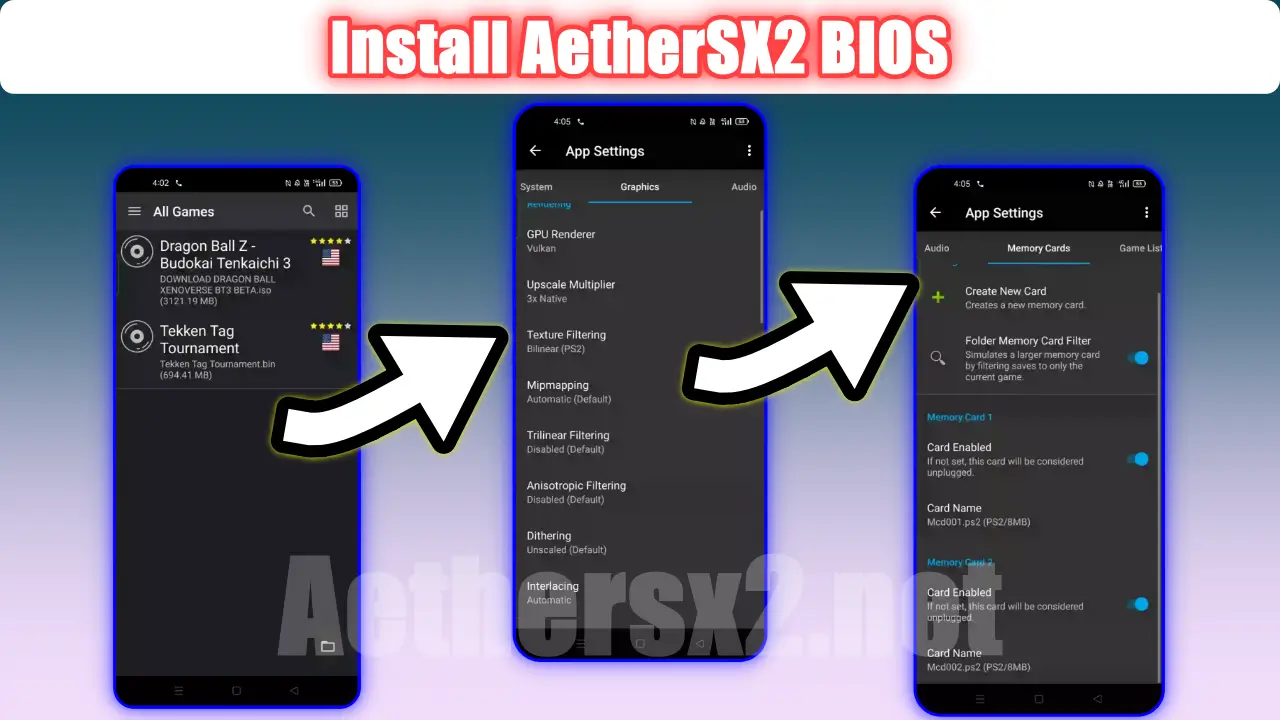
The AetherSX2 BIOS is the actual PlayStation 2 firmware file that the emulator needs to boot any game. Without it, AetherSX2 simply won’t run — no BIOS, no gameplay, period.
Think of it like this: AetherSX2 is the engine, but the BIOS is the ignition key. The emulator can replicate the PS2’s hardware behavior almost perfectly, but it can’t fake Sony’s proprietary firmware code. That code — roughly 4MB in size — handles things like the boot logo, memory card checks, and the low-level system calls every PS2 game relies on.
A lot of people download AetherSX2, load up a game ISO, and hit a black screen. Nine times out of ten, that’s a missing or wrong BIOS file, not a broken emulator.
Where Does the AetherSX2 BIOS File Come From?
The BIOS has to come from a PlayStation 2 console you own. There’s no way around this if you want to stay on the right side of copyright law — Sony’s firmware is copyrighted software, not something the AetherSX2 developers can legally bundle with the app.
Aether (the developer behind AetherSX2) has said this directly in the emulator’s own FAQ: dump your own BIOS from your own console. That’s the only supported method.
Can You Download AetherSX2 BIOS Files Online?
Technically, yes — plenty of shady sites host BIOS files with names like “SCPH-70012.bin.” Should you use them? Not really, and here’s why.
- Corrupted files are common. A bad download can cause random crashes mid-game, something that’s maddening to troubleshoot later.
- Malware bundling is a real risk. BIOS files are tiny, so scammers often wrap them in installers loaded with adware or worse.
- Wrong region files cause boot loops or language mismatches — your “US” game suddenly runs in Japanese.
Dumping your own BIOS takes about 10 minutes and guarantees a clean, matching file. It’s worth the extra effort.
What You Need Before Dumping Your PS2 BIOS
Before you start, gather these:
- A working PlayStation 2 console (fat or slim model, both work)
- A memory card with free space (8MB or larger)
- A USB flash drive (2GB minimum, FAT32 formatted)
- Free Modded BIOS Compatible (FMCB) software, version 1.966 is the stable one most people use
- A way to load FMCB onto the memory card — usually through a modchip, free McBoot exploit, or a swap trick depending on your PS2 model
If you don’t already have a modded PS2, this is the part that trips people up. The exact method depends on your console’s model number, and older slim PS2s (like the SCPH-750xx series) sometimes need a disc swap exploit instead of a software installer.
How to Dump Your PS2 BIOS (Step-by-Step)
Dumping BIOS Using a PS2 Console and USB Drive
- Install Free McBoot on your memory card following the guide specific to your PS2 model.
- Insert the memory card and USB drive into your PS2.
- Boot the console — it should load into the FMCB menu instead of the normal PS2 menu.
- Open the wLaunchELF application (usually bundled with FMCB tools).
- Navigate to the BIOS dumping tool — often listed as “biosdump.elf” or similar.
- Select your USB drive as the destination.
- Run the dump. It takes under a minute.
- Copy the resulting
.binfile (something likeSCPH-90001.bin, roughly 4MB) from the USB drive to your PC or phone.
Dumping BIOS Using PCSX2 (If You Already Have It)
If you already run PCSX2 on a PC with a PS2 disc drive:
- Open PCSX2 and go to Config > BIOS.
- Some builds include a built-in BIOS dumper under Tools.
- Connect your PS2 via a USB-to-IDE/SATA adapter if you’re extracting from the console’s hard drive (advanced users only — most people skip this route).
Honestly, the memory card/USB method above is simpler for most readers and doesn’t require any extra hardware beyond what you likely already own.
How to Set Up BIOS in AetherSX2
Once you’ve got the .bin file, setup is quick.
On Android
- Copy the BIOS file to your phone’s internal storage — a folder like
Download/PS2BIOSworks fine. - Open AetherSX2.
- Go to Settings > BIOS.
- Tap Bios Directory and select the folder where you placed the file.
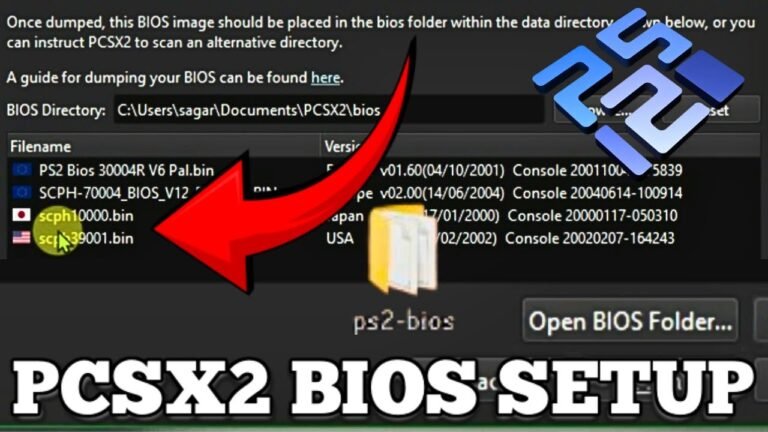
- The app should auto-detect it and show something like “USA v02.20(09/22/2003) Console” or your specific region’s version string.
- If it’s not detected, double-check the file isn’t corrupted (should be exactly 4,194,304 bytes for most models).
On Windows (PC Version)
- Launch AetherSX2 (or the newer builds distributed through community sources, since Aether paused official development in 2023).
- Go to Settings > BIOS Settings.
- Point the BIOS folder to wherever you saved the
.binfile. - Restart the emulator so it refreshes the BIOS list.
- Confirm it shows up correctly before loading any ISO.
A quick note here: AetherSX2’s official development stopped in March 2023 after the creator moved to work on a PS3 emulator project. The Android and Windows versions still work fine on most devices, but don’t expect new updates. If you’re on PC, some people now prefer standalone PCSX2 since it’s still actively updated — worth keeping in mind if you’re choosing between them.
Common AetherSX2 BIOS Errors and How to Fix Them
| Error | Likely Cause | Fix |
|---|---|---|
| “BIOS not found” | Wrong folder selected | Re-select the exact folder containing the .bin file |
| Black screen after loading BIOS | Corrupted dump | Re-dump from your PS2, verify file size |
| Game boots but crashes on menu | Region mismatch (EU BIOS with US game, for example) | Use matching region BIOS or set emulator region manually |
| App won’t detect BIOS at all | File renamed or wrong extension | Keep original filename and .bin extension |
| Very slow boot loop | Low RAM device running high-res BIOS logo rendering | Lower internal resolution in graphics settings |
Most of these come down to one thing: people rush the BIOS step because they want to jump straight into playing God of War II or Persona 4. Slowing down for five extra minutes here saves an hour of troubleshooting later.
Which BIOS Region Should You Use?
This matters more than people think. Your BIOS region should generally match the games you plan to play.
- NTSC-U (USA) BIOS — best if most of your ISOs are US releases
- PAL (Europe) BIOS — needed for European game dumps, runs at 50Hz which can affect speed on some titles
- NTSC-J (Japan) BIOS — required for Japanese-only releases, some RPGs never got a US translation patch
Mixing regions isn’t impossible, but it can cause frame pacing issues, especially with PAL BIOS running NTSC games where you’ll notice things running about 20% faster or slower than intended. If you’re building a mixed game library, some users keep two BIOS files and switch between them in settings depending on what they’re launching.
Is Using a BIOS File Legal?
Dumping a BIOS from a console you personally own is generally considered legal under most interpretations of copyright fair use, similar to backing up a disc you own. Downloading someone else’s BIOS dump from a random site is legally murkier and, frankly, riskier for the malware reasons mentioned earlier.
Nintendo, Sony, and other console makers have gone after ROM and BIOS distribution sites before — the 2018 lawsuit against LoveROMS and LoveRETRO is a good example of how seriously this gets treated. Owning the hardware and dumping your own copy keeps you in much safer territory.
AetherSX2 BIOS Setup Mistakes People Keep Making
- Downloading a BIOS with the wrong file extension (some sites zip it oddly, and the emulator won’t read a renamed .zip as a .bin)
- Using a BIOS from a PS2 with a different region than their games
- Skipping the “restart the app” step after adding the BIOS folder on Android — this alone accounts for a huge chunk of “BIOS not detected” complaints on forums
- Assuming any 4MB file works — file size is close but the internal firmware version also has to be valid; a corrupted file can still land near 4MB
- Not backing up the BIOS file somewhere safe — if your phone storage gets wiped, you’re back to square one
None of these are hard to avoid once you know about them. But almost every AetherSX2 troubleshooting thread traces back to one of these five things.
FAQ Section
Q: Where can I get the AetherSX2 BIOS file?
A: You need to dump it yourself from a PlayStation 2 console you own using tools like Free McBoot and wLaunchELF. Downloading a BIOS from a website isn’t supported by the developer and carries malware and legal risk.
Q: Why does AetherSX2 say “BIOS not found” even after I added the file?
A: This usually means the app is pointed at the wrong folder, or the BIOS file was renamed and lost its correct .bin extension. Re-check the exact folder path in Settings > BIOS and restart the app after selecting it.
Q: Can I use a PS3 or PS1 BIOS with AetherSX2?
A: No. AetherSX2 only emulates the PS2, so it requires a genuine PS2 firmware dump, typically around 4MB in size and specific to your console’s region.
Q: Is AetherSX2 still being updated in 2024?
A: No, official development stopped in March 2023 when the creator shifted focus to a PS3 emulator project. The existing app still works on most Android and Windows devices, but community forks are where any ongoing fixes come from now.
Q: Does the BIOS region need to match my game’s region?
A: Ideally yes. A mismatched BIOS and game region can cause crashes, wrong language menus, or timing issues, especially between PAL (50Hz) and NTSC (60Hz) titles.
Q: How big should the AetherSX2 BIOS file be?
A: Most PS2 BIOS dumps are exactly 4,194,304 bytes (4MB). If your file is significantly smaller or larger, it’s likely corrupted or not a genuine PS2 BIOS.
Conclusion
The AetherSX2 BIOS setup isn’t complicated once you understand the one non-negotiable rule: dump it from your own PS2, match the region to your games, and point the emulator at the right folder. Skip the shortcuts and random downloads — ten minutes with your own console saves hours of troubleshooting black screens later.
For more useful articles, visit my website: PStoBios.com.