Call us now:

Getting NetherSX2 BIOS set up correctly is the single biggest hurdle standing between you and playing PS2 games on your Android phone. Without the right BIOS files placed in the right spot, the emulator simply won’t boot a single game — no matter how good your phone is. This guide walks through exactly what you need, where those files come from, and how to install them without wasting an afternoon on forum threads that contradict each other.
I’ve set this up on three different phones over the past year, including a mid-range Galaxy A54, and the process is the same every time once you understand what’s actually happening under the hood.
What Is NetherSX2 BIOS and Why Do You Need It?
NetherSX2 is a PS2 emulator for Android, built on the same PCSX2 core that powers PS2 emulation on PC. The BIOS is the small chunk of firmware that originally ran inside a real PlayStation 2 console — it’s the software that showed the boot logo, managed memory cards, and handed control over to whatever disc you inserted.
Emulators can fake almost everything about a console. They can fake the graphics chip, the controller inputs, even the disc drive. But they can’t legally include the actual BIOS, because that firmware is Sony’s copyrighted code. So NetherSX2 asks you to supply your own BIOS dump — a file pulled directly from a PS2 you own.
Think of it like this: the emulator is a movie theater, and the BIOS is the projector Sony built. NetherSX2 gives you the theater, the seats, and the screen. You still need to bring your own projector.
Where Do BIOS Files Come From?
This trips up almost everyone new to PS2 emulation. You can’t just download a BIOS file from a random website and expect a clean, working setup — and honestly, you shouldn’t want to.
Here’s why: BIOS files floating around download sites are often outdated, corrupted, or bundled with malware disguised as a ZIP file. I’ve seen users on Reddit’s r/emulation report crashes and freezing that turned out to be caused by a BIOS file that was missing several hundred kilobytes compared to a proper dump.
Legal Reality of BIOS Files
Sony owns the copyright on PS2 BIOS firmware. Dumping it from a console you personally own falls under fair use in most countries, similar to how ripping a DVD you bought is treated differently than pirating a movie. Downloading someone else’s dump from a random site is a legal gray area at best.
The safe, reliable route is dumping the BIOS yourself from a PS2 you actually own. It takes about 15 minutes with the right tools, and you end up with a file guaranteed to match your console’s exact region and revision.
What You Need Before Installing NetherSX2 BIOS
Before touching your phone, gather these:
- A physical PS2 console (any model — fat or slim both work)
- A USB flash drive (1GB or larger is plenty)
- An SD card adapter or memory card for the PS2, if your console needs one for OPL
- A PC or laptop to transfer files
- Your Android phone with NetherSX2 installed (download it from the official GitHub page, not a random APK site)
- At least 20MB of free storage for the BIOS files themselves — they’re tiny
That’s genuinely it. No jailbroken devices, no root access needed on the phone side for basic BIOS installation.
How to Dump BIOS Files From Your Own PS2
The most reliable method uses a free tool called Open PS2 Loader (OPL) alongside a homebrew exploit called FreeMcBoot, or a simpler swap-magic disc depending on your console’s age.
Using the OPL Method
- Install FreeMcBoot (FMCB) on a PS2 memory card using a compatible exploit for your console’s software version.
- Boot your PS2 with the memory card inserted — you’ll land on the OPL menu instead of the standard PS2 dashboard.
- Plug a USB drive into the console.
- Navigate to the BIOS dumping tool inside OPL (usually listed as “Dump BIOS” or accessed through a homebrew app called “PS2 BIOS Dumper”).
- Select your console’s region — NTSC-U for North America, PAL for Europe, NTSC-J for Japan.
- Run the dump. It creates a file usually named something like SCPH-70012.bin or SCPH-90001.bin, depending on your PS2’s exact model number (printed on the bottom of the console).
- Copy this .bin file from the USB drive onto your PC.
The whole thing takes 10-15 minutes once FreeMcBoot is set up. If you’ve never touched PS2 homebrew before, expect the FreeMcBoot setup itself to take another 20-30 minutes the first time.
How to Install NetherSX2 BIOS on Android (Step-by-Step)
Once you have your .bin file on your PC, getting it onto your phone is the easy part.
- Connect your Android phone to your PC using a USB cable.
- Create a folder on your phone’s internal storage named bios (some versions of NetherSX2 auto-create this folder on first launch — check your Downloads or Android/data folder if you don’t see one).
- Copy your BIOS .bin file into that folder.
- Open NetherSX2 on your phone.
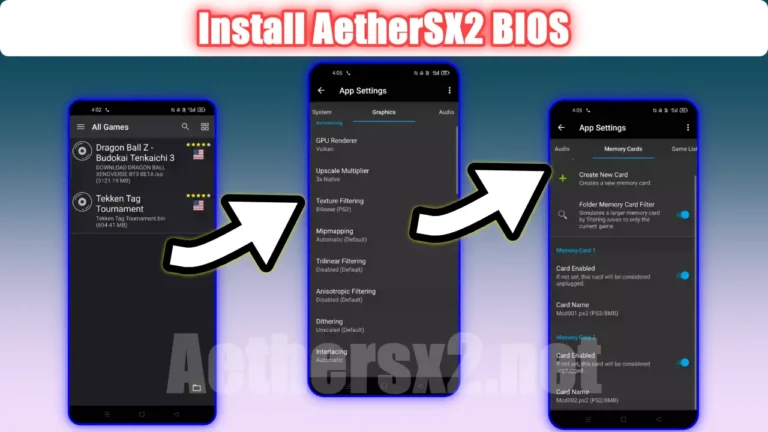
- Go to Settings > BIOS, and point the emulator to the folder where you placed the file.
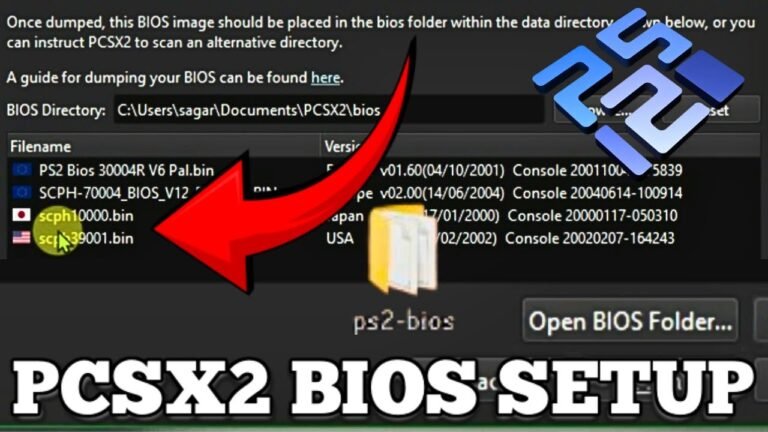
- The app should detect the BIOS automatically and display its region and version (something like “USA v02.20”).
- Restart NetherSX2 completely — close it from your recent apps list, don’t just minimize it.
- Load a game ISO to confirm the BIOS boots correctly.
If step 6 doesn’t show your BIOS detected, double-check the file extension is .bin and not .zip — a common mistake is forgetting to extract the dump before copying it over.
NetherSX2 vs ArmSX2 — What’s the Difference?
People often ask whether they should use NetherSX2 or armsx2 instead, since both names show up in emulation communities.
Here’s the actual distinction: armsx2 is essentially an earlier, ARM-optimized build of the PCSX2 codebase for Android, while NetherSX2 is the more actively maintained fork that most current users have settled on. Both use the same BIOS file format, so if you’ve already dumped your BIOS for one, it works with the other without any extra steps.
| Feature | NetherSX2 | armsx2 |
|---|---|---|
| Active development | Yes, regular updates | Less frequent updates |
| BIOS compatibility | Standard PS2 BIOS dumps | Same BIOS dumps work |
| Performance on newer chipsets | Generally better optimized | Solid but older base |
| Community support | Larger, more active | Smaller, niche |
| Best for | Most users in 2024-2025 | Users on older APK builds |
If you’re starting fresh today, NetherSX2 is the better pick simply because it gets updated more often and has a bigger community to troubleshoot with. armsx2 still works fine, but you’ll find fewer recent guides and fixes for it.
Common NetherSX2 BIOS Errors and How to Fix Them
Even with the correct files, things go wrong. Here are the errors I run into most often, and what actually fixes them:
- “BIOS not found” message — Usually means the file is in the wrong folder or has the wrong extension. Re-check the path in Settings > BIOS.
- Black screen after boot logo — Often caused by a corrupted or incomplete BIOS dump. Redo the dump using OPL rather than trusting a downloaded copy.
- Wrong region errors on specific games — European (PAL) games need a PAL BIOS, and US (NTSC) games need an NTSC-U BIOS. Mixing regions causes games to freeze at the character select screen in many cases.
- App crashes immediately on launch — Check that your phone has at least 3GB of RAM free; NetherSX2 struggles badly below that on demanding titles like Shadow of the Colossus.
- BIOS detected but games won’t load — This is almost always an ISO problem, not a BIOS problem. Verify your game file isn’t corrupted by checking its file size against a known-good reference online.
How to Check If Your BIOS Files Are Working Correctly
A properly working BIOS shows a few clear signs. The NetherSX2 settings menu displays the exact console model and firmware version — something like “SCPH-90001 v02.30(J).” You’ll also see the real PS2 startup animation before any game loads, not a black screen or a stuck logo.
Test it with a lightweight, well-known game first. Final Fantasy X or Guitar Hero are good choices because they’re not too demanding on hardware and will quickly reveal BIOS problems versus performance problems.
Tips to Improve Performance After BIOS Setup
Getting the BIOS working is step one. Getting games to run smoothly is a separate battle.
- Set the internal resolution to native (or 1x) if your phone struggles — bumping it to 2x or 3x looks sharper but can tank frame rates on mid-range chipsets like the Snapdragon 695.
- Enable the “Software Renderer” fallback only for games that show major graphical glitches on the default Vulkan renderer.
- Close background apps before launching — PS2 emulation is CPU-heavy, and Android will throttle performance if RAM is tight.
- Update NetherSX2 regularly; the developers push compatibility fixes for specific games almost every month.
FAQ Section
Q: Can I use one BIOS file for multiple PS2 games?
Yes. A single BIOS dump works for every game in that region — you don’t need a separate BIOS per game. One NTSC-U BIOS file, for example, handles every North American PS2 game you load.
Q: Is downloading NetherSX2 BIOS files from the internet safe?
It’s risky and not recommended. Many downloaded BIOS files are corrupted, mismatched to your games’ region, or bundled with unwanted software. Dumping your own from a PS2 you own takes about 15 minutes and guarantees a clean file.
Q: Does armsx2 use the same BIOS files as NetherSX2?
Yes, both emulators use standard PS2 BIOS dumps in .bin format. If you’ve already set up BIOS files for one, you can copy them directly into the other without redumping.
Q: Why does NetherSX2 say “BIOS not found” even after I added the file?
This usually means the file sits in the wrong folder or wasn’t fully extracted from a ZIP archive. Confirm the path in Settings > BIOS matches exactly where your .bin file is stored.
Q: What’s the difference between NTSC and PAL BIOS files?
NTSC BIOS files match North American and Japanese consoles, while PAL matches European ones. Using the wrong region BIOS with a game from a different region often causes freezing or a black screen during boot.
Q: How much storage does the BIOS take up on my phone?
Almost nothing — a single BIOS file is typically around 4MB. The real storage demand comes from the game ISOs themselves, which can range from 700MB to over 4GB each.
Conclusion
The whole NetherSX2 BIOS process comes down to one rule: dump it yourself from a PS2 you own, put it in the right folder, and match the region to your games. Skip the shortcuts of downloading random BIOS files online, and most of the common errors people run into simply never happen.
For more useful articles, visit my website: PStoBios.com.